A corporate website should not become difficult to manage the moment the developer hands it over.
Yet many businesses invest in attractive websites only to discover that employees cannot update service information, publish company announcements, manage customer enquiries or review website performance without asking the developer for assistance.
Consider a construction company in Port Moresby with operations in Lae.
The company wants to publish completed projects, update its capability statement and respond to quotation requests. Its marketing officer manages website content, the sales team handles enquiries, and management needs visibility into outstanding requests.
If everyone shares one administrator account, important changes become difficult to trace. If enquiries arrive only by email, requests may be missed when employees are absent. If the website lacks proper editing tools, even minor changes become additional development tasks.
A well-designed corporate website admin dashboard can address these problems.
However, an effective dashboard is not simply a screen with attractive charts and colourful statistics. It must support the actual work employees perform while protecting business information and maintaining the public website.
This guide explains ten essential administration features, how they work and what businesses in Papua New Guinea should verify before accepting a completed website.
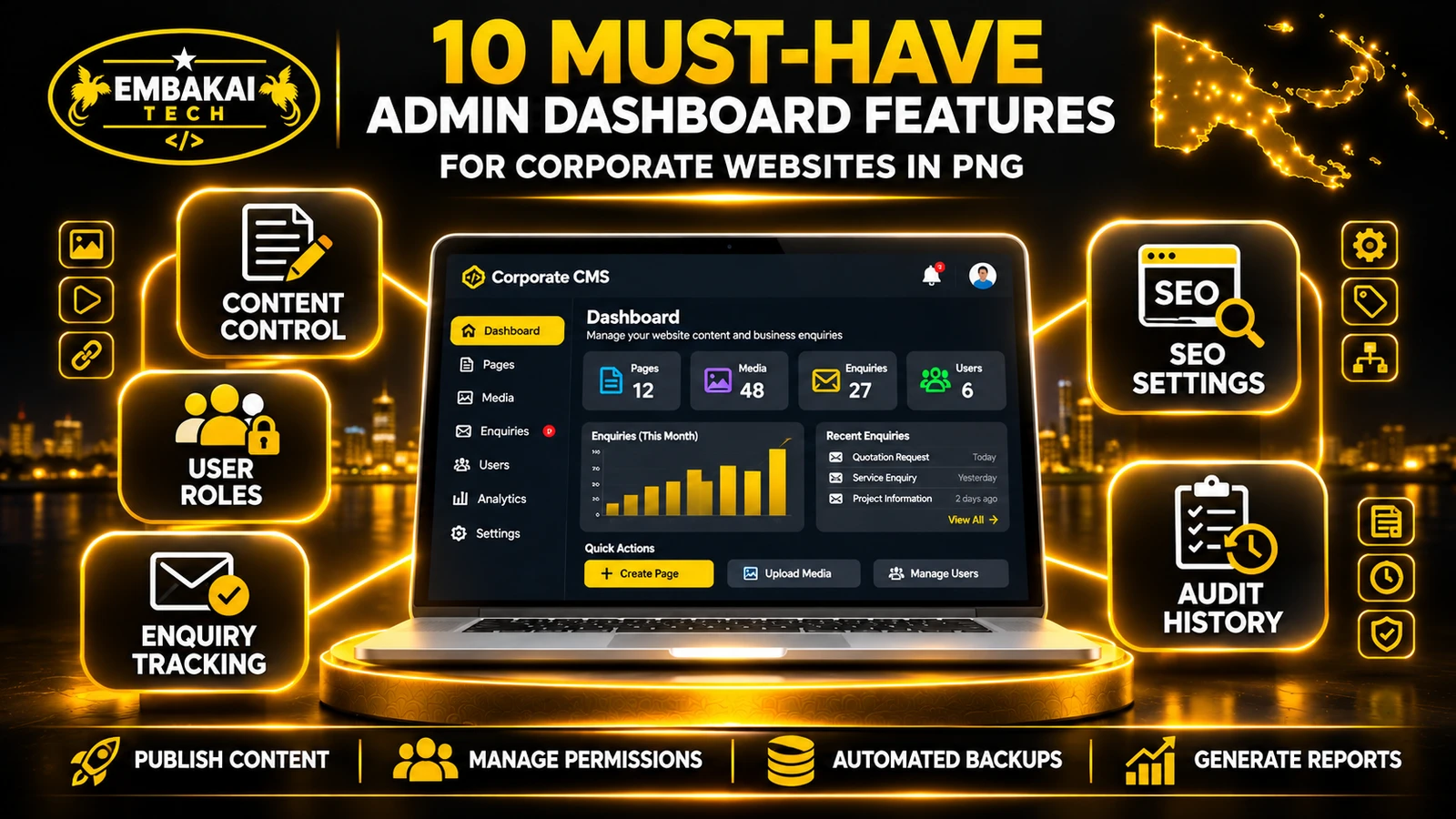
A corporate website admin dashboard is a private interface used by authorised employees to manage website content and related business functions.
Depending on the company's requirements, it may provide access to:
For example, when an authorised editor updates a service description, the backend validates the request, saves the approved information and makes the content available on the public website according to the publishing workflow.
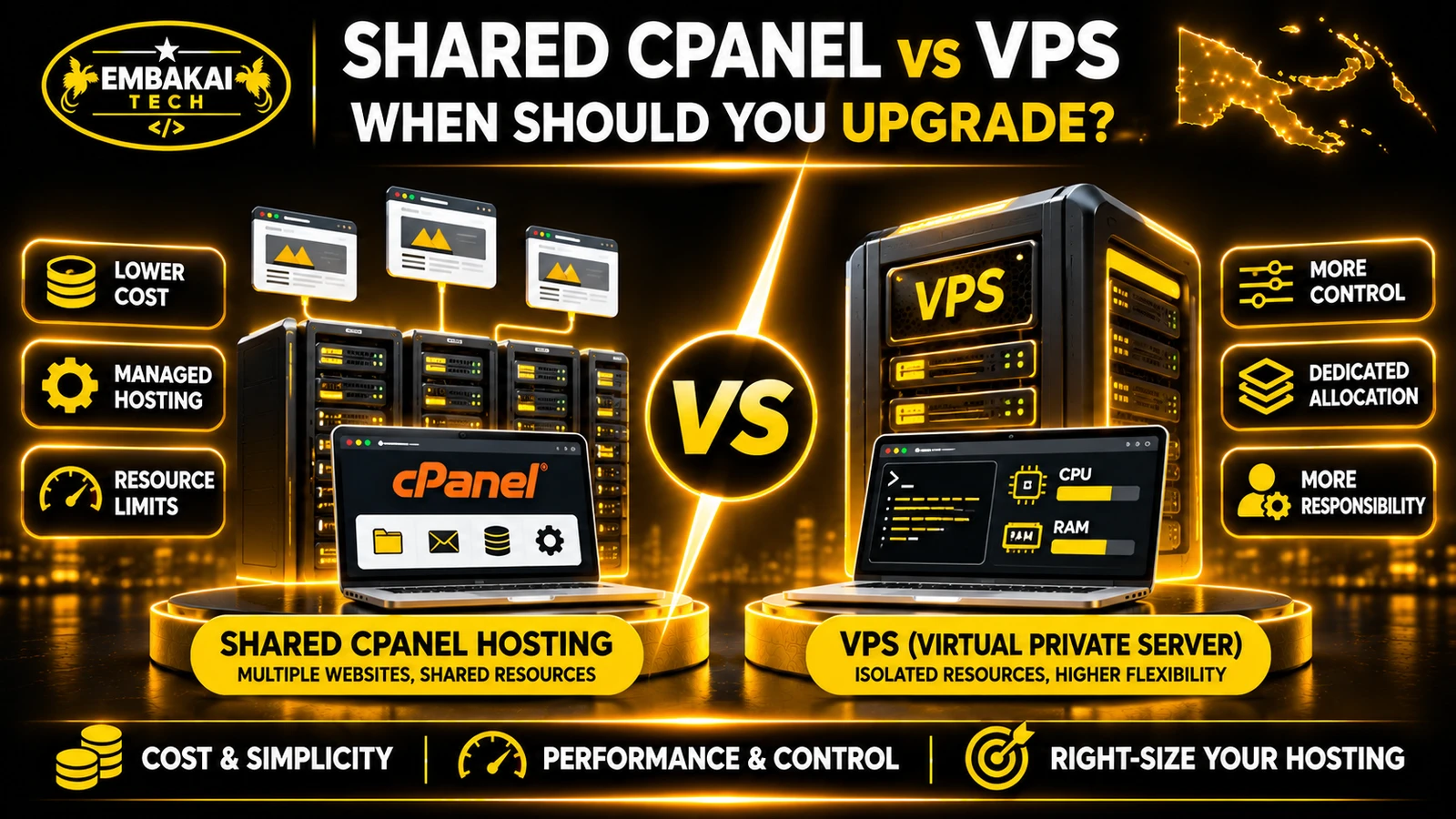
A dashboard is not necessarily the same thing as cPanel.
cPanel manages hosting account functions. A corporate website dashboard manages the website's content and agreed business operations.
A company may use both, but employees responsible for publishing news or replying to enquiries should not normally need access to server-level hosting controls.
The first essential feature is the ability to update website content without editing source code.
A corporate website may contain service pages, project portfolios, news articles, staff profiles, business documents and other information that changes over time.
The dashboard should provide appropriate editing tools for each content type.
A useful content management interface can provide:
The editor should not have to rebuild the layout or manually write HTML every time the company completes another project.
A dashboard that provides only one large text editor may be sufficient for simple articles.
It becomes less useful when the website contains different kinds of business information.
Structured fields help maintain consistent presentation.
A staff profile may require a name, position, biography and photograph. A project page may require services, location, description and approved project images.
These should not be forced into the same generic form.
Acceptance test: Ask a staff member to create a service draft, preview it, save it without publishing and then publish it through the authorised workflow.
If the task requires editing code or contacting the developer unnecessarily, the content management process needs improvement.
Not every employee should have full administrative control.
A marketing officer may need to publish articles, while accounts staff may only need access to relevant financial documents. Customer service employees may need to review enquiries without changing the website's SEO settings.
A corporate admin dashboard should support individual user accounts and appropriate permissions.
| Staff role | Typical responsibilities |
|---|---|
| Content Editor | Create and edit draft pages and articles |
| Content Approver | Review and publish approved content |
| Customer Service | View and respond to assigned enquiries |
| Marketing Manager | Manage approved content and SEO fields |
| Administrator | Manage users and permitted website settings |
These roles are examples. Actual permissions should reflect the organisation's responsibilities.
A single shared administrator password creates accountability and security problems.
If several people use the same account, it can be difficult to determine who deleted a project, changed a phone number or published an incorrect announcement.
Individual accounts allow permissions to be assigned and withdrawn when responsibilities change.
The system should enforce permissions on the backend, not only hide buttons in the interface.
For example, removing the Delete button from an employee's screen is insufficient if the employee can still delete a record by directly calling the backend endpoint.
The principle of least privilege means giving each user only the access required for their work.
OWASP recommends enforcing access controls consistently and denying access by default when permission has not been established.
Acceptance test: Sign in using a content editor account and attempt to access a restricted administrator action. Confirm that the backend denies the request.
Corporate websites frequently use photographs, capability statements, reports, brochures and other files.
Without a proper media library, employees may upload duplicate images, lose track of document versions or accidentally remove files still used on public pages.
A useful media management system should help staff organise and maintain these assets.
Depending on the project, include:
The dashboard should allow an authorised employee to upload the approved document and update the correct public download link.
It should also help prevent an old file from being removed when another page still references it.
Uploading a large photograph directly from a phone can unnecessarily increase page weight.
An effective media workflow can generate appropriately sized image variants and use formats such as WebP where suitable.
Alternative text should describe meaningful image content rather than repeat keywords.
For sensitive documents, additional access controls may be necessary. A file should not become publicly accessible merely because it has been uploaded.
Acceptance test: Upload a large photograph, add descriptive alternative text, publish it on a page and verify that the public version loads correctly on a mobile connection.
For many businesses, customer enquiries are more important than website traffic statistics.
A website may receive messages through contact forms, quotation forms and service requests.
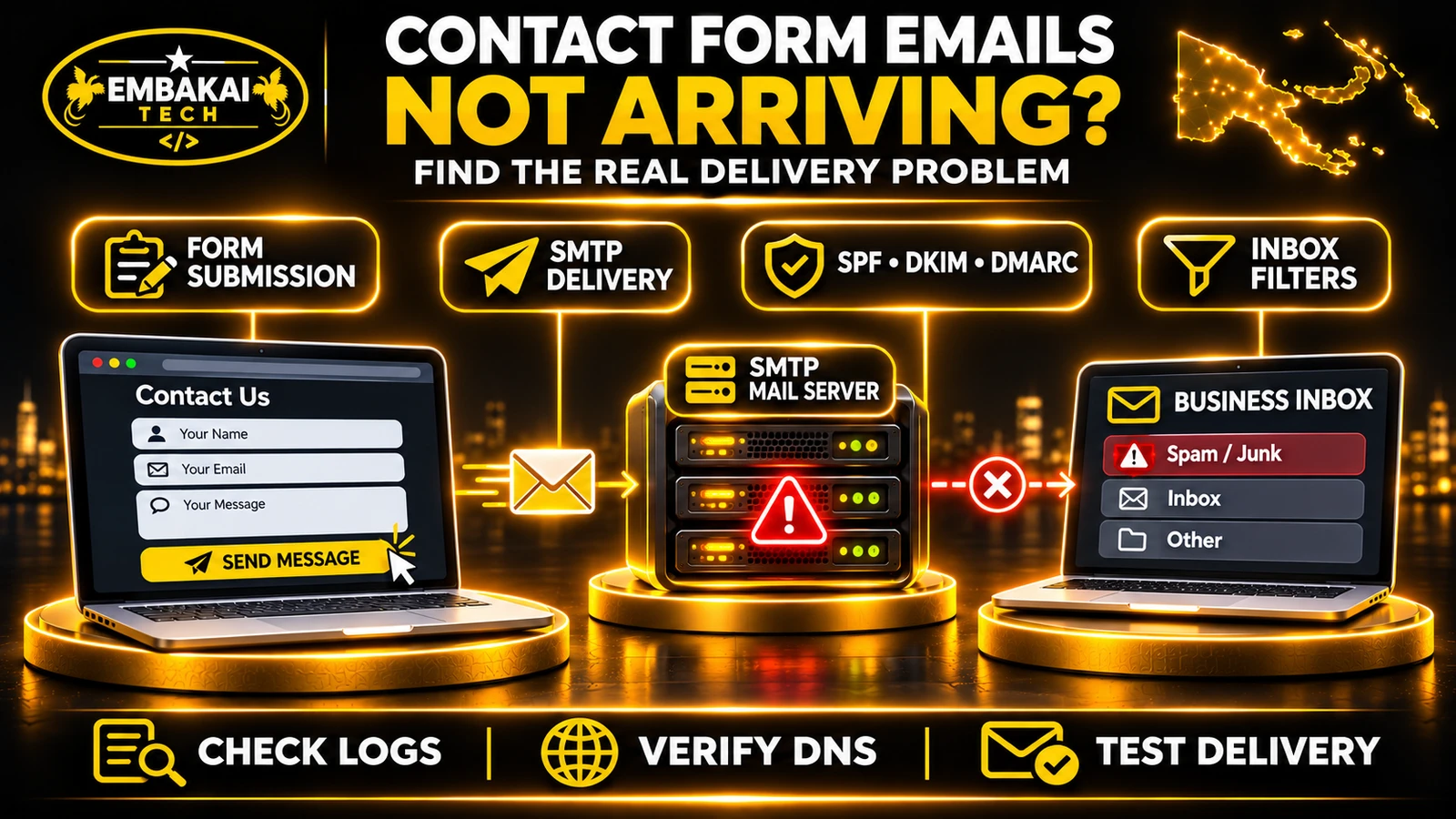
If these submissions are handled only through email notifications, an important enquiry can be missed when the recipient's mailbox is unavailable or the message is filtered.
A business-oriented admin dashboard can store accepted enquiries in a structured database.
A practical workflow might look like this:
Customer submits request → System records enquiry → Staff receive notification → Enquiry assigned → Follow-up recorded → Request closed
Each enquiry can contain:
The admin dashboard should help staff identify the relevant request and direct it to the appropriate employee.
A simple system may use statuses such as:
The dashboard should also distinguish between a customer who opened WhatsApp and someone who successfully submitted a quotation.
A WhatsApp link click alone does not prove that the person sent a message.
Managers may want to see how many requests are pending, how long enquiries remain unanswered and which services generate interest.
These figures become useful when they are based on real records rather than arbitrary dashboard counters.
Acceptance test: Submit a test quotation, confirm the backend stores it, assign it to an employee and verify that the employee can update its status without accessing unrelated records.
A corporate website needs more than a good-looking homepage.
Its service pages, portfolio entries and articles should be organised so search engines can understand their purpose.
An admin dashboard should allow authorised users to manage important SEO fields without editing the website's source code.
Useful features include:
A title such as “Our Services” communicates less than a properly written title describing the actual service and location.
An editor should not be able to casually change a published URL without understanding the consequences.
If a page already has links and search visibility, changing its address can break those references.
A good publishing workflow should highlight the implications and support appropriate permanent redirects where needed.
Adding a keyword field does not guarantee better rankings.
The public content must answer the visitor's question, provide relevant information and link naturally to useful related pages.
Google may also generate search result snippets from the page content rather than using the supplied meta description exactly.
Acceptance test: Update a test page's SEO title and description, publish it and inspect the actual HTML to confirm the correct metadata appears without duplicate canonical tags.
Corporate websites often repeat important business information across multiple pages.
Examples include:
A dashboard should offer controlled management of shared website information.
Suppose a company changes its customer service phone number.
Ideally, an authorised employee updates the approved contact setting once, and the website uses that value in the relevant components.
That avoids different numbers appearing on the homepage, contact page and footer.
Where navigation editing is included, staff should be able to:
Certain changes can affect usability and search visibility, so permissions and previews are important.
Acceptance test: Change a test global contact setting and verify that all intended website sections display the updated value without changing unrelated information.
Mistakes happen.
An employee may accidentally replace a correct paragraph, remove an important image or publish an outdated document.
A well-designed dashboard should make relevant changes traceable and, where appropriate, reversible.
For content management, revision history can record previous versions of pages and articles.
Employees with suitable permissions can compare changes and restore an earlier approved version.
For example, if a revised service description contains incorrect information, the content manager can review the previous version instead of manually reconstructing it.
An audit log answers different questions:
Audit logs should avoid unnecessarily storing passwords, secret tokens or sensitive document content.
Restoring one article to an earlier version is not the same as recovering an entire website after a database or storage failure.
These functions serve different purposes.
Acceptance test: Modify a test article, review its history and restore the previous approved content. Confirm that the administrative action is recorded appropriately.
An admin dashboard should help employees find information quickly.
Imagine a website with 150 published pages, hundreds of images and several months of customer enquiries.
Without reliable search and filtering, employees may spend too much time scrolling through records.
Useful features include:
A page that displays 50 cards with oversized text may look impressive in a screenshot but become difficult to use during daily work.
Business dashboards should prioritise readable data, clear navigation and predictable actions.
For example, an employee processing enquiries should quickly identify which submissions are new, which are assigned and which require follow-up.
Some employees may access the dashboard using a laptop, while others work from phones.
Important tasks should remain usable on smaller screens.
Responsive design should not simply squeeze an entire desktop table into a narrow layout.
The application should also provide labelled controls, visible keyboard focus and useful error messages.
Accessibility is part of operational quality, not merely visual presentation.
Acceptance test: Ask an employee to locate a specific enquiry, filter records by status and update the result using both desktop and mobile layouts.
Business information becomes valuable as the website grows.
A corporate admin dashboard may manage articles, customer enquiries, service records and uploaded documents.
Losing this information can disrupt business operations.
The website therefore needs an appropriate backup and recovery strategy.
Depending on the application:
Storing a backup file inside a publicly accessible website directory is not an acceptable recovery strategy.
The dashboard does not necessarily need to perform backups itself.
In fact, backups may be better handled by hosting infrastructure or a dedicated backup service.
However, authorised administrators should have an appropriate way to understand:
A backup is useful only when it can actually restore the necessary information.
A sound recovery plan should be tested periodically using an appropriate environment.
Acceptance test: Verify that a recoverable backup exists, that its retention and access controls are appropriate, and that an authorised restore test can recover sample content and media.
The final feature is the ability to turn website and business records into useful information.
However, an effective dashboard should not be measured by the number of charts it displays.
Every chart or metric should help someone make a decision.
For a corporate website, reports might include:
Website analytics platforms can help explain visitor behaviour.
The website's own database can provide more reliable records of accepted enquiries, quotations and work completed.
These should not be treated as identical data sources.
For example:
A customer clicking a WhatsApp button is a website interaction.
A completed quotation submission is an enquiry.
A manager confirming that the enquiry is genuine creates a qualified lead.
These events should be measured separately.
A dashboard can also surface problems requiring attention.
Examples include:
A dashboard filled with permanent red warnings that nobody acts on is not useful.
Acceptance test: Submit a test enquiry, verify it appears in the appropriate operational report and confirm that the relevant alert or notification behaves as specified.
Not every organisation needs all ten features in its initial release.
The appropriate starting point depends on the website's purpose and the people responsible for maintaining it.
| Feature | Typical priority | Main benefit |
|---|---|---|
| Content management | Essential for frequently updated websites | Staff can maintain information |
| Roles and permissions | Essential for multi-user systems | Controlled access |
| Media management | High | Organised assets |
| Enquiry management | High for lead-generating websites | Follow-up visibility |
| SEO controls | High for content-focused sites | Manage search presentation |
| Navigation and global settings | High | Consistency |
| Revision and audit history | High | Accountability |
| Search and filtering | Depends on content volume | Faster administration |
| Backup and recovery | Essential operational requirement | Business continuity |
| Reporting and alerts | Depends on workflow | Better decisions |
For a small company website managed by one authorised employee, a modest CMS with sound backup procedures and reliable contact handling may be sufficient.
For a larger organisation with several departments, publishing approvals, detailed permissions and enquiry assignment may become more important.
A dashboard should grow around real business needs rather than including every possible module on day one.
Consider a hypothetical engineering company operating in Port Moresby and Lae.
Its public website displays services, project portfolios, company information and quotation forms.
Three departments need access to the administration system.
Marketing employees create service pages, upload approved project photos and prepare articles.
They can save drafts but cannot modify website-wide administrator permissions.
A designated reviewer approves content before it becomes public.
Sales employees review customer enquiries and prepare follow-up actions.
They can change enquiry statuses and update permitted records.
They cannot edit public service descriptions or access unrelated administration settings.
Management can review quotation activity, pending enquiries and selected performance reports.
Authorised managers approve changes that require elevated permission.
The company can now manage content, customer communication and reporting through coordinated workflows instead of relying on unrelated spreadsheets and shared administrator credentials.
This example demonstrates how the dashboard can support different departments while keeping responsibilities separate.
A corporate admin dashboard does not always need to be developed from scratch.
WordPress includes content editing, media management and user administration capabilities.
For many conventional corporate websites, its existing features and suitable extensions may meet the requirements.
Custom development can still be necessary for specialised workflows.
Laravel can provide the backend foundation for a custom administration system.
A developer can define data models, business rules, permissions, content publishing workflows and integrations that match an organisation's requirements.
Blade, React or other appropriate frontend technologies can be used to build the interface.
React can be useful for advanced dashboard interfaces involving dynamic forms, filtering, tables and interactive workflows.
However, React alone does not provide the complete backend, database, authorisation and business processes.
Those responsibilities must be implemented through the relevant application services.
Choose based on:
Custom development becomes more appropriate when the business needs workflows that an existing CMS cannot adequately support.
Before approving project handover, request a demonstration using realistic business tasks.
Ask the developer to demonstrate:
For example, does the system display a useful error when a form fails? Can users recover unsaved changes? Does an unauthorised action receive a proper rejection?
Document which functions are included in the original quotation and which require separate development.
A dashboard should not be considered complete merely because a set of menus and charts appears on the screen.
Not necessarily. A simple website with rarely changing content may not need a sophisticated dashboard. A business that regularly publishes information, manages enquiries or coordinates staff will benefit more from suitable administration tools.
Yes. A suitable system can combine content management and enquiry workflows. The actual scope depends on what the organisation needs and what is included in development.
Yes. A properly designed system can assign permissions based on staff responsibilities. Those permissions must be enforced by the backend, not just the visible interface.
It can make important SEO fields easier to manage and reduce mistakes. However, it does not guarantee higher search rankings. Useful content, technical implementation and search relevance still matter.
Often, yes. The developer should first inspect the current codebase, database, hosting and content structure to determine what can be added without unnecessarily rebuilding the website.
Costs depend on the modules, number of roles, business workflows, data migration, integrations, testing and ongoing support. A basic content management interface is substantially different from a customer portal with quotation approvals, reporting and operational automation.
A corporate website admin dashboard should make everyday website administration more reliable.
Employees should be able to publish approved information, manage relevant enquiries, find records, maintain appropriate SEO fields and understand the status of important tasks.
Managers should have confidence that access is controlled, changes can be traced and essential business information can be recovered.
The most useful dashboard is not necessarily the one with the most features.
It is the one that helps the organisation accomplish its actual work.
Before commissioning a corporate website or dashboard, ask the development team to demonstrate the tasks your employees will need to perform after launch.
That is one of the most practical ways to distinguish a fully functioning administration system from an attractive but limited interface.
Embakai Tech Solutions provides corporate website design and development services and custom software development for organisations across Papua New Guinea.
Whether your organisation needs content management, staff permissions, quotation tracking, a customer portal or an integrated administration dashboard, the right starting point is to identify the users and workflows involved.
For more background, read What Can a Full-Stack Developer Build for a Business in Papua New Guinea?.
Contact Embakai Tech Solutions to discuss your requirements and request a development quotation.
Contact Embakai Tech Solutions for a focused review, implementation plan or quote for your organisation in Papua New Guinea.
Explore our PNG service areas and industry website options, or discuss full-stack and custom software development. Embakai is based in Port Moresby and supports remotely managed projects across PNG.
Request a Quotation