To move a business website without disrupting email, identify the systems behind the domain, test the new website, and change only the DNS records needed for web traffic. Keep the existing mail service active and verify both inbound and outbound mail after cutover.
Before moving anything, identify which services are changing.
A business domain may be connected to several providers.
For example:
| Service | Example responsibility |
|---|---|
| Domain registrar | Maintains domain registration |
| DNS provider | Publishes DNS records |
| Website hosting | Runs the public website |
| Email provider | Sends and receives business mail |
| CDN or reverse proxy | Routes and protects web traffic |
| Application provider | Runs business forms, databases and workflows |
These services can be supplied by one company or several different companies.
A business might register its domain with one provider, use Cloudflare for DNS, host its website on cPanel and use Microsoft 365 for email.
In that situation, moving the website does not normally require transferring the domain registration, replacing the DNS provider or migrating the email mailboxes.
Website-only migration: Move website files, database and application configuration while preserving the domain name and email provider.
Website and email migration: Move the website and transfer mailboxes or email services to a new provider.
Full domain and hosting migration: Change the domain's DNS management or registration arrangements alongside website or email infrastructure.
These should not be treated as the same operation.
For most website-only migrations, the safest approach is to change only the records and services that actually need changing.
The first step in protecting email is determining which provider handles incoming messages.
Do not assume business email is hosted by the same company that hosts the website.
Suppose a company has:
If the website moves to a different server, the existing email service might continue operating on the original server.
However, the company must retain the old email service and preserve its mail-routing DNS records.
If the original hosting account is cancelled, mailboxes hosted there may stop working.
Therefore, keeping email on the old server may only be a temporary arrangement until a separate email migration is completed.
The business website may use cPanel while email is handled independently by Microsoft 365, Google Workspace or another email provider.
In this case, moving the website should not require changing the email provider's MX records.
The email configuration should be preserved unless there is a specific, authorised reason to change it.
This is a particularly important situation.
Suppose the MX record points to example.com and the domain's A record points to the current hosting server.
If you change the A record to the new website server, the MX hostname may now resolve to the new server as well.
Even though the MX record itself has not changed, incoming email can be affected.
The correct solution depends on the existing setup. It may involve configuring a dedicated mail hostname and ensuring the MX record points to the intended mail provider.
Never assume that leaving the MX record unchanged guarantees email continuity. Check the hostname that the MX record resolves to.
DNS tells computers and services where to find the systems associated with a domain.
Different DNS records serve different purposes.
During a website migration, the following records deserve particular attention.
| DNS record | Purpose | Migration consideration |
|---|---|---|
| A | Connects a hostname to an IPv4 address | May need updating for the new web server |
| AAAA | Connects a hostname to an IPv6 address | Check for an old server address |
| CNAME | Points a hostname to another DNS name | Preserve or update according to the intended service |
| MX | Identifies incoming mail exchangers | Preserve unless email routing is changing |
| TXT (SPF) | Authorises email-sending sources | Review if the sending service changes |
| DKIM | Supports email authentication through signed messages | Preserve the provider's records |
| DMARC | Defines authentication policy and reporting | Preserve and validate |
| CAA | Can restrict which certificate authorities issue certificates | Check compatibility with new certificate issuance |
| SRV and service records | Support certain service discovery configurations | Preserve where required |
Not every business uses every record type.
The important requirement is to inventory the existing records and understand their purpose.
Consider this illustrative configuration:
example.com       A       192.0.2.10
www.example.com   CNAME   example.com
mail.example.com  A       192.0.2.20
example.com       MX      mail.example.com
The website uses 192.0.2.10.
The email server uses 192.0.2.20.
If the website moves to 198.51.100.30, the web A record may need to change.
The mail hostname and MX record can remain associated with the existing email service.
The addresses above are documentation examples, not real server addresses.
If Cloudflare is the authoritative DNS provider, DNS record changes should be made in Cloudflare.
Updating records inside an unrelated cPanel DNS zone will not necessarily affect public DNS.
Always identify the domain's active authoritative nameservers first.
When Cloudflare proxies web traffic, public DNS lookups normally return Cloudflare addresses rather than the origin server's actual IP address.
This matters when testing a migration: public DNS output alone may not reveal which origin Cloudflare is using.
A migration should begin with an inventory, not a file transfer.
Record:
Record:
Identify important workflows such as:
Record:
Without this inventory, it becomes difficult to distinguish a migration defect from a problem that existed beforehand.
Before making infrastructure changes, prepare an appropriate backup.
A website migration backup may need to include:
Many applications store important information in a database or private storage directory.
Similarly, a database export without uploaded files may be insufficient for restoring the website.
A WordPress migration commonly needs the database, WordPress files and uploaded media.
Plugin-specific files or configuration may also matter.
A Laravel migration may require application source files, dependencies or reproducible dependency installation, database records, private storage and the necessary environment configuration.
Sensitive settings should be transferred securely rather than included in public archives.
A backup file existing is not proof that restoration will work.
Where possible, restore it in a suitable test environment.
Verify that the application can access its database and required media.
Do not delete the original hosting environment immediately after creating a backup.
Keep a suitable rollback option until the migration has been verified.
One of the most common migration mistakes is pointing the domain to the new server before the website is ready.
A better approach is to configure and test the destination first.
Check:
Move the required files and import the database through the supported migration process.
Update environment-specific values carefully.
These may include:
For websites accepting orders, quotations or customer records, a database copied earlier in the day may already be outdated.
Plan how new submissions will be handled between the initial data copy and the final cutover.
Possible approaches include a controlled maintenance window, a final database synchronisation or an application-specific migration strategy.
The correct method depends on the system.
For transactional applications, simply transferring an old database backup and switching DNS can result in missing customer records.
The destination should be tested while the original website remains operational.
A staging hostname or controlled test environment can be used for this purpose.
For some deployments, developers can also test an origin using an appropriate hostname and connection override.
However, direct-origin testing may not work when the hosting setup intentionally permits traffic only through a reverse proxy.
Use a method compatible with the site's existing security and hosting architecture.
Open the homepage, service pages, portfolio, blog and contact page.
Verify uploaded media and downloadable files.
Submit authorised test enquiries and confirm the backend records the submissions correctly.
Test appropriate staff and customer accounts.
Create, update and retrieve test records where the environment permits.
Test the website's configured outbound email delivery.
A functioning business mailbox does not automatically mean the website's SMTP configuration is correct.
Check representative pages and important workflows.
Test the actual site on small screens and reasonable mobile network conditions.
The new website should not be considered ready merely because its homepage loads.
Email continuity requires more than preserving the visible mailbox address.
MX records identify the servers responsible for receiving mail for a domain.
If the business continues using the same email provider, preserve the correct MX configuration.
Remember that the hostname targeted by the MX record must still resolve to the intended mail server.
SPF identifies authorised email-sending services.
A domain may send mail through several systems, including:
Do not automatically add a second independent SPF TXT record.
The domain's SPF policy should be maintained as a valid, coordinated configuration.
DKIM allows receiving mail systems to verify messages using cryptographic signatures.
Preserve existing DKIM records for email services that remain active.
If the migration introduces a new sending provider, configure its DKIM records as required.
DMARC defines how receiving servers should handle messages that fail relevant authentication and alignment checks.
Preserve the organisation's established policy unless a separately justified change is required.
Changing the website server does not automatically justify weakening DMARC enforcement.
An MX record concerns incoming mail delivery.
Website notifications may use SMTP credentials or a transactional email service to send outgoing messages.
Therefore, test these separately.
A company could receive mail successfully while its quotation notification system fails to send messages.
Both functions must be verified.
When migrating a website between cPanel environments, email routing settings can cause problems even when public DNS records look correct.
cPanel supports different mail-routing configurations.
The server accepts mail for the domain and handles local delivery.
This is appropriate when that server is actually responsible for receiving the domain's mail.
The server treats the domain's email as externally hosted and routes outbound messages to the appropriate remote mail exchanger.
This is relevant when the website runs on cPanel but the business email is hosted elsewhere.
Suppose a website moves to a new cPanel server while its email remains with Microsoft 365.
If the new cPanel environment incorrectly treats the domain's mail as local, application-generated messages addressed to the company's own domain may be routed incorrectly.
This can produce confusing failures.
The correct routing setting depends on the actual mail service architecture.
Also note that cPanel's automatic detection relies on its local zone configuration and does not necessarily update when external DNS changes.
Verify email routing explicitly rather than assuming the hosting panel always detects the correct arrangement.
Cloudflare is commonly used to manage DNS and proxy web traffic.
During a website-only migration, the intended change may be as simple as updating the relevant web origin address.
However, several checks are necessary.
Locate the domain's web-facing A, AAAA or CNAME records.
Check both the root domain and www hostname.
Do not overlook an old AAAA record if the new hosting environment does not support that IPv6 address.
Confirm the MX destination and all relevant mail hostnames.
In Cloudflare, ordinary SMTP, IMAP and POP3 connections do not pass through the standard HTTP proxy.
Mail-specific hostnames should therefore use an appropriate DNS-only configuration.
For a proxied website, update the appropriate DNS record to the new origin while retaining the intended proxy setting.
For a DNS-only website, change the relevant public record to the new destination.
Do not change unrelated TXT, MX or service records simply because the hosting server is changing.
If the website uses Cloudflare Full (strict), the new origin must present an appropriate valid certificate for the requested hostname.
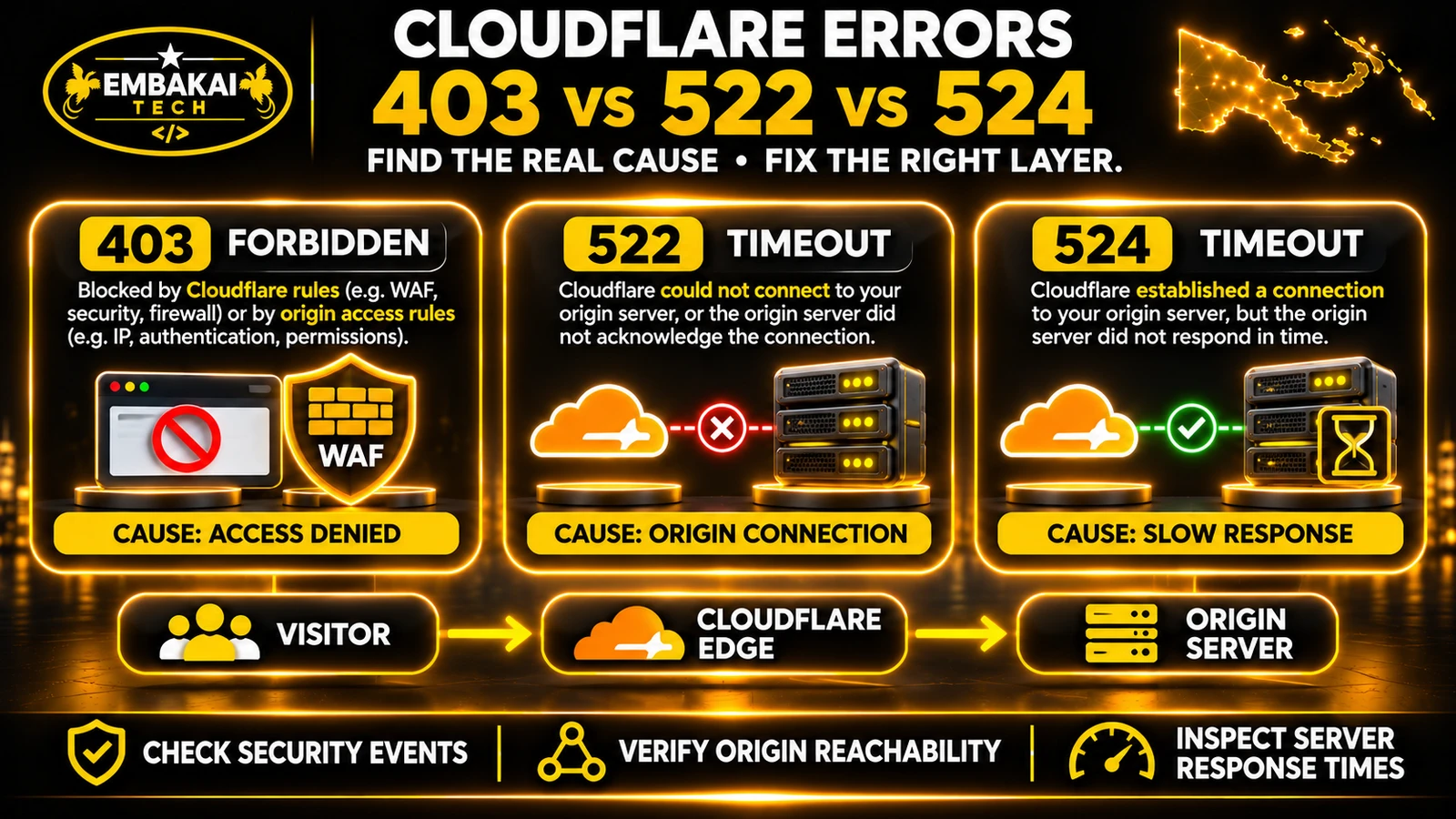
Otherwise, visitors may encounter an HTTPS connection error such as Cloudflare 526.
Prepare and verify the origin certificate before directing production traffic to the new server.
Do not disable certificate validation to hide a migration problem.
Cloudflare may continue serving cached assets after the origin changes.
Use targeted cache invalidation where required, especially when files or asset versions have changed.
Avoid treating a cached page as proof that the new origin works correctly.
TTL means Time to Live.
It controls how long DNS resolvers are permitted to cache a record.
A shorter TTL can reduce the time that a resolver uses an older DNS result, but it does not guarantee that every user will see the new destination immediately.
For example, a DNS-only web record with a long TTL may continue to be cached after the record changes.
If the current provider allows it, lowering the TTL sufficiently before the planned cutover can help.
Cloudflare's standard proxied DNS records use an automatic TTL of 300 seconds.
That does not mean every change will become visible everywhere in exactly five minutes.
Local resolver caches, client behaviour and other infrastructure can affect observed results.
Changing an individual A or CNAME record is different from changing the domain's authoritative nameservers.
Moving a website usually does not require changing nameservers when the existing DNS provider will remain in use.
A nameserver change introduces a broader set of risks because the destination DNS provider must already contain all necessary records.
If DNSSEC is enabled, the delegation and DS records must also be planned correctly.
Avoid unnecessary nameserver changes during a website-only migration.
After the new website has passed testing, prepare the production cutover.
Check the application, database, media, HTTPS and important workflows.
Record the current MX, mail hostname and authentication settings.
For transactional applications, prevent accepted records from being lost between the old and new systems.
Preserve unrelated mail and service records.
Confirm that the domain is serving the intended application.
Check forms, logins, enquiries and application emails.
Some traffic or background requests may still reach the old environment during the transition.
Do not immediately cancel the original service.
A migration is complete when the application and its dependent services operate correctly, not when the DNS record has simply been changed.
For Windows users, PowerShell can help inspect the public DNS configuration.
The following examples use a fictional domain.
Replace it with the domain being migrated.
Resolve-DnsName example.com -Type A
Resolve-DnsName example.com -Type AAAA
Resolve-DnsName www.example.com -Type CNAME
Not every hostname uses every record type.
For a Cloudflare-proxied hostname, the result normally represents Cloudflare's public addresses rather than the origin server.
Resolve-DnsName example.com -Type MX
Verify that the returned mail exchangers match the email provider's expected configuration.
Resolve-DnsName mail.example.com -Type A
Use the actual hostname referenced by the MX record.
If the MX target is not mail.example.com, query the correct destination instead.
Resolve-DnsName example.com -Type TXT
Identify the relevant SPF policy among the returned TXT records.
Resolve-DnsName _dmarc.example.com -Type TXT
DKIM selectors depend on the email provider, so verify them using the provider's documented hostnames.
curl.exe -I https://www.example.com/
Check the status code, redirects and response headers.
A successful HEAD request does not replace full browser and functional testing.
DNS lookups cannot prove that email delivery works end to end.
Test these situations:
A migration plan needs an agreed recovery procedure.
Possible causes include cached content, old DNS results or an incomplete switch to the new environment.
Verify which origin is serving the request before making additional changes.
Inspect the application logs and runtime configuration.
Possible causes include missing dependencies, incorrect environment values, database connectivity or file permissions.
Check the certificate, hostname, origin reachability and the configured TLS mode.
Avoid disabling HTTPS or weakening certificate validation as a shortcut.
Check the MX destination, its resolved address, authoritative DNS records and actual mailbox service.
Also verify that the intended email server is still operating.
If mail is hosted on the original cPanel account, confirm that the original account remains active.
Inspect the application's SMTP or email service configuration.
For cPanel-hosted applications, verify the domain's local or remote email-routing setting where applicable.
This is potentially more serious than a temporary website error.
It may indicate that some requests were written to the old database and others to the new one.
Avoid blindly restoring an earlier backup over newer records.
First identify the authoritative source of each transaction and reconcile affected data.
If the new hosting environment fails, a DNS rollback may redirect website traffic to the previous server.
However, this is only safe when the previous application environment and its data are still suitable for production.
For example, if customers created records on the new server, reverting to an older database can hide those records.
A correct rollback plan covers both traffic routing and data consistency.
DNS rollback is not a complete data-recovery strategy.
Moving a website to another hosting provider does not inherently require changing its public URLs.
This is useful for protecting existing search visibility.
For example, a website may move from one cPanel server to another while retaining:
https://www.example.com/services/
The hostname and page path remain unchanged.
In this scenario, the priority is ensuring that the new server continues providing the correct content at the existing URLs.
Avoid unnecessary changes to:
Check:
That is why public indexability must be verified after cutover. What if the domain name also changes? A domain migration is a separate SEO project.
Where URLs change, prepare a mapping from old URLs to their correct new destinations and implement appropriate permanent redirects.
Google recommends server-side permanent redirects for such moves.
Do not redirect every old URL to the new homepage regardless of content.
Also update relevant canonical URLs and follow Google's Search Console guidance for domain changes.
For a hosting migration where public URLs remain the same, a Search Console Change of Address request is not needed.
Consider a hypothetical engineering company in Port Moresby.
Its current configuration is:
Website: Shared cPanel hosting.
Email: Microsoft 365.
DNS: Cloudflare.
New hosting: A different compatible cPanel server.
The company wants to move the website only.
The developer identifies:
The developer transfers the website and database.
Public pages, customer enquiries and notifications are tested in the new environment.
The existing Microsoft 365 email routing remains unchanged.
After the website passes validation, the relevant Cloudflare web-origin record is updated.
The developer verifies:
The company moves its website without unnecessarily changing the systems responsible for business email.
Use this checklist when preparing to change hosting providers.
Yes, in many cases. The website and email services can remain separate. The migration must preserve the correct mail DNS records and keep the existing email service operational.
It can, depending on the DNS architecture. If the MX destination resolves through the A record being changed, mail routing may be affected. Always inspect the MX target and its resolved addresses.
Not necessarily. If the existing DNS provider remains in use, updating the appropriate website records is often sufficient.
Only if there is a clear business reason and a properly planned email migration. Separating website and email changes can reduce unnecessary complexity.
Cloudflare's standard HTTP proxy does not handle ordinary SMTP, IMAP or POP3 traffic. Mail-related hostnames need appropriate DNS-only routing unless a supported specialised service is configured.
It depends on record TTLs, caches and the infrastructure involved. Do not rely on a fixed universal completion time. Monitor the actual destination and retain the old environment until the transition is verified.
A hosting change does not automatically require new URLs or loss of rankings. However, extended outages, changed content, broken redirects, accidental noindex settings and other migration errors can affect search performance.
It can, provided the original mail service remains active and the correct routing configuration is retained. Cancelling the old hosting account may terminate the mailboxes if email is included in that account.
A website migration should be planned around business continuity.
The goal is not simply to transfer files and update a DNS record.
It is to ensure that the business website, email accounts, customer enquiries, databases, online services and search visibility continue operating correctly.
For a website-only migration, the safest approach is often to preserve the existing email provider, change only the necessary web infrastructure and test both services independently.
When email is also moving, treat it as a separately planned operation with its own data migration, authentication and verification requirements.
A successful migration is one where customers can continue finding your business, sending enquiries and communicating with your team without unnecessary disruption.
Embakai Tech Solutions provides website development, hosting and technical deployment services for businesses and organisations across Papua New Guinea.
Whether you are moving between shared cPanel accounts, upgrading to a VPS or changing website infrastructure while retaining your current business email, start with an audit of the existing services and dependencies.
Explore Domain, Hosting & DevOps or read Shared cPanel Hosting vs VPS for PNG Businesses for help choosing a hosting plan.
Contact Embakai Tech Solutions to discuss your website migration and request a quote.
Contact Embakai Tech Solutions for a focused review, implementation plan or quote for your organisation in Papua New Guinea.